Documentation for version 1.3, build 2. Compatible with macOS 15 and later.
Mini MP3 Player is a compact macOS player for MP3 files with direct playback, queue, stereo waveform, LED level meter, spectrum analysis, and an optional vintage cassette deck design.
Views
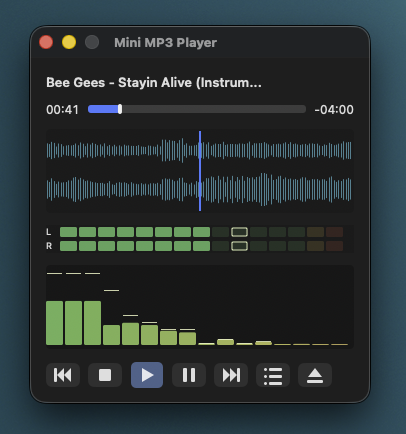
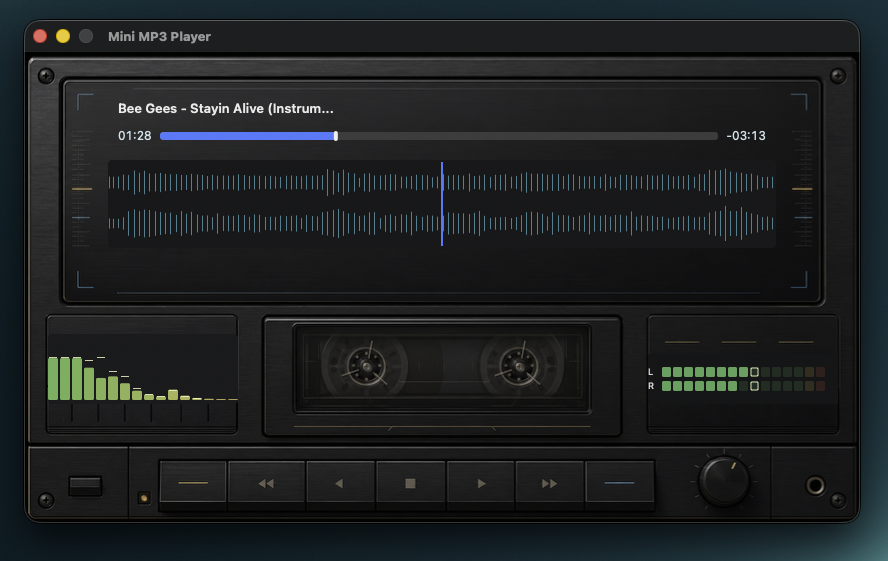
Standard mode: compact player view with stereo waveform and position display.Vintage mode: cassette deck layout with fixed display elements. Waveform, LED, and spectrum remain active in this mode.
Quick start
Start Mini MP3 Player.app.
Use File -> Open MP3... to select one MP3 file, multiple MP3 files, or a folder.
Playback starts immediately after selection.
When multiple tracks are selected, a queue is created. After one track ends, the next track starts automatically.
The eject button can stop the current track and open a new selection.
Controls
Element
Function
Play
Starts or resumes playback. During playback, the button is visually highlighted.
Pause
Pauses playback. The pause button remains highlighted in pause mode.
Stop
Stops playback and resets the position to the beginning.
Previous / next track
Switches within the queue.
Queue
Shows the remaining tracks. Clicking a track starts it immediately and removes earlier tracks from the sequence.
Eject
Stops the current track and opens file selection for a new file, multiple files, or a folder.
Position bar
The mouse can be used to jump to a specific position within the track.
Files and folders
File selection accepts single MP3 files, multiple MP3 files, and folders. If a folder is selected, the app searches that folder and its subfolders for MP3 files.
For stability reasons, the queue is limited to a maximum of 500 tracks. Defective or unreadable MP3 files are skipped if additional tracks are available in the queue.
Display elements
Waveform
The waveform shows both stereo channels in standard and vintage mode. During playback, an area of roughly one second scrolls through the window. The display uses narrow cyan lines for a calm, readable look.
LED level meter
The LED display shows the bass level separately for left and right. It uses 15 segments per channel: green segments for the normal range, yellow at 0 dB, and red above 0 dB. A peak hold with about one second of release time briefly marks peaks.
Spectrum analyzer
The spectrum analyzer works with 16 bands and shows the frequency spectrum in real time. A peak hold is also shown here so short peaks remain easier to see.
Menu functions
Menu
Function
File -> Open MP3...
Opens file selection for files or folders.
View -> LED Level Meter
Shows or hides the LED level meter in standard mode.
View -> Waveform Display
Shows or hides the waveform in standard mode.
View -> Spectrum Analyzer
Shows or hides the spectrum analyzer in standard mode.
View -> Loop Control
Shows or hides the A/B loop buttons in standard mode.
View -> Standard Design
Selects system controlled, light mode, or dark mode for standard mode.
View -> Vintage Design
Turns the cassette deck design on or off.
Playback -> Shuffle
Activates shuffled playback within the remaining queue.
Playback -> Set A Point
Sets the start point for an A/B loop at the current position.
Playback -> Set B Point
Sets the end point for an A/B loop at the current position.
Playback -> Delete A/B Loop
Removes the active loop.
In vintage mode, waveform, LED, and spectrum are permanently active. The corresponding standard view options and standard design selection are therefore disabled in the menu.
Loop control
In standard mode, loop control can be shown via the menu. A sets the start point, B sets the end point. Once both points are valid, playback jumps back to A when B is reached. x deletes the loop.
Design modes
Standard mode
Standard mode is the compact working view. Via View -> Standard Design, it can be displayed system-controlled, light, or dark. The selection is saved.
Vintage mode
Vintage mode shows the program as a cassette deck. The drawn controls in the image can be clicked directly. The cassette reels animate during playback and stand still during pause or stop.
Development: A new path to software
Mini MP3 Player is not just a small music program. The app is an example of how software creation is changing: idea, user experience, visual details, error analysis, build process, and documentation were developed entirely with AI support from Codex and GPT 5.5.
At the beginning there was no finished specification, but a wish: a tiny MP3 player for the Mac, immediately ready to play, without an overloaded interface. Step by step, this wish became a real product. Each new idea was tried, evaluated, and developed further: first the mini player, then waveform, LED levels, spectrum analysis, queue, folder import, loop control, and finally the vintage cassette deck.
What is special is the speed of creation. What used to require long concept, development, and testing phases was shaped in an ongoing dialogue: observe, decide, improve, build. GPT 5.5 worked in the roles of architect and developer, Codex handled the technical implementation in the project, and FuryLAN took the role of initiator and product manager. A spontaneous idea became a working macOS app.
From idea to app through dialogue
AI-supported development with Codex and GPT 5.5
Professional build with Xcode
FuryLAN as initiator and product manager
Mini MP3 Player therefore marks a small but tangible milestone in software creation. The app shows that people without classic coding routines can create their own tools when creativity, product sense, and AI assistance work together. Not as a replacement for good decisions, but as an amplifier: faster, more direct, and closer to the original idea.
Download and installation
Mini MP3 Player 1.3, Build 2
Version 1.3, Build 2
Download the installation file, open it, and drag Mini MP3 Player.app to the Applications folder.
If macOS asks during the first launch, only confirm apps from a source you trust. For final distribution, the app should be signed and verified.
You can find the version number in the app via the menu item Mini MP3 Player -> About Mini MP3 Player. The approved artifact set for 1.3 is Mini MP3 Player.app and MiniMP3Player-1.3-build2.dmg.
Support and feedback
Mini MP3 Player 1.3 is intended to be clearly usable and supportable via direct download. If you have questions, installation problems, or feedback, please contact furylan@nieting.de.
When sending feedback, please always include the macOS version, app version, build, and a short problem description. If possible, also add whether the issue occurs with a specific MP3 file, folder import, or view.
Troubleshooting
Problem
Possible solution
App does not start
Check whether the app was fully copied from the installation volume into the Applications folder. Then start the installed app.
A track does not play
The file may be defective, protected, or not a valid MP3. In a queue, Mini MP3 Player tries to load the next track.
No display in standard mode
Check whether waveform, LED, or spectrum were disabled in the View menu.
Folder selection does not load all tracks
The queue is limited to a maximum of 500 MP3 files.
Window or display does not fit
Close the app window and restart Mini MP3 Player. The view is rebuilt on startup.