User documentation for RabbitRUNNER 1.1, Build 1. Compatible with macOS 13 and later.
RabbitRUNNER is a fast arcade game for macOS. The rabbit collects carrots, escapes the wolves, uses clovers for escape mode, and chases new highscores.
Overview
RabbitRUNNER is a classically inspired arcade game. You guide a rabbit through a maze, collect carrots, and avoid the wolves. The goal is to score as many points as possible, complete levels, and earn a place on the highscore list.
CollectCarrots award points and clear the playing field.
AvoidWolves chase the rabbit and become more dangerous as levels increase.
SwitchClovers briefly switch the wolves into escape mode.
Bonus pointsFruit gives instant points and temporarily starts multipliers.
Views
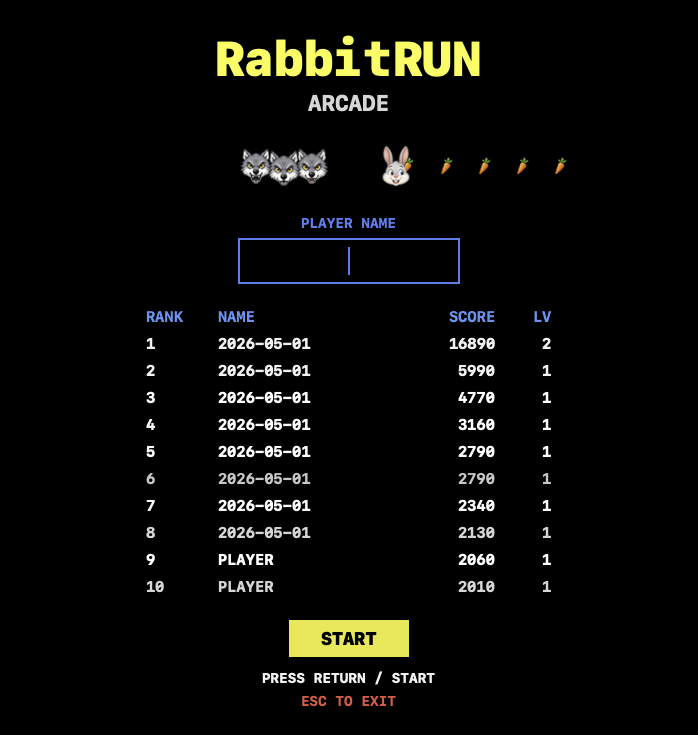
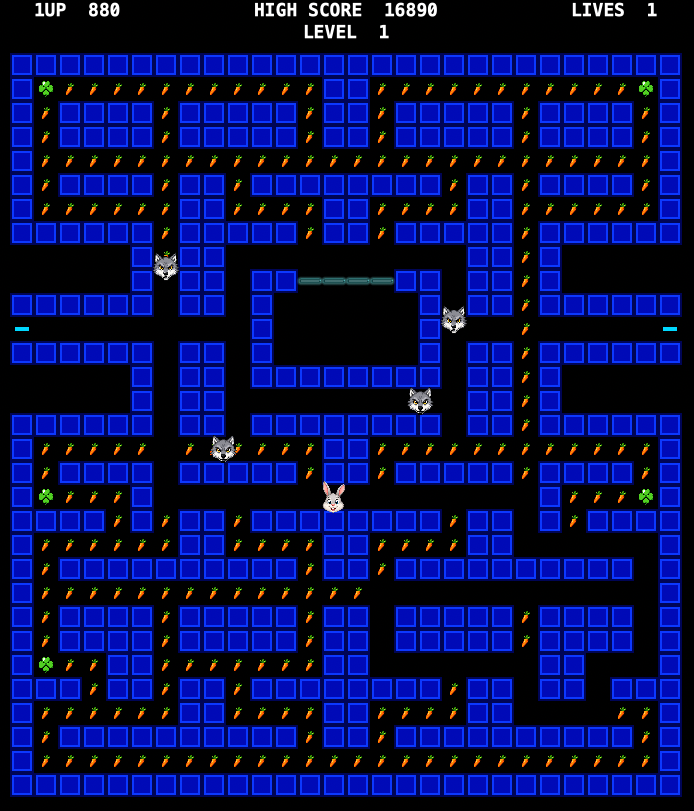
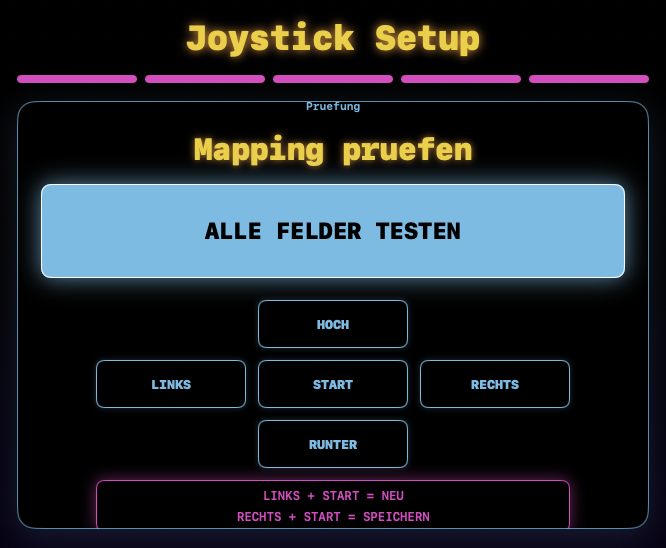
Start screen: enter a name, view highscores, and start the game.Game view: collect carrots, avoid wolves, and complete levels.Joystick setup: configure and verify the mapping step by step.
Game start
The start screen shows highscores, name entry, and the start button.
Start the installed app RabbitRUNNER.app.
The top 10 highscore list appears on the start screen.
Enter your player name. The name is limited to 15 characters.
If you do not enter a name, RabbitRUNNER automatically uses the current date.
Press Enter, the start button, or the configured joystick start button.
After the short ready sequence, the game begins.
Controls
Input
Function
Arrow keys
Move the rabbit up, down, left, or right.
WASD
Alternative keyboard controls for directions.
Enter
Start the game from the start screen.
Space bar
Pause and resume the game.
Esc
Quit the app from the start screen. Return to the start screen while playing.
Joystick directions
Control the rabbit when a controller or USB joystick is configured.
Joystick start button
Start, pause, or confirm wizard steps.
RabbitRUNNER buffers direction requests shortly before an intersection. This makes turns feel more direct even if you press the direction slightly early.
Game rules
The playing field: collect carrots, use clovers, and avoid the wolves.
Collect carrots
Carrots are the normal collectible points in the maze. When all carrots and clovers have been collected, the level is complete.
Avoid wolves
The wolves chase the rabbit. If a normal wolf touches you, you lose a life. After a short pause, the round restarts.
Power / escape mode
When you collect a clover, the wolves briefly switch into escape mode. During this time, you can catch them and earn extra points.
Bonus fruit
Bonus fruit appears for a short time at reachable positions during a level. When you collect it, you immediately receive points and a temporary score multiplier.
Level completion
After clearing the playing field, an intermission screen appears. The next level then starts while your score remains.
Scoring and highscore
Event
Points
Carrot
10 points
Clover
50 points
Captured wolf
200, 400, 800, 1600 points in sequence
Bonus fruit
Depending on the fruit, 100 to 1000 instant points
Level bonus
Level points multiplied by the current level number
An active bonus fruit multiplier only applies to points newly collected during the bonus period. Points already earned and the level completion bonus are not multiplied retroactively.
After game over, your score is saved if it reaches the local top 10. Highscores remain stored on your Mac and are loaded again on the next start.
Level system
After each completed level, a new round starts. Score and remaining lives remain. At higher levels, the wolves become faster and their chase becomes more dangerous.
Level 1 is intentionally approachable.
The challenge increases step by step with each level.
The hunter AI becomes more accurate and puts more pressure on the rabbit.
The level bonus rewards a successfully completed playing field.
Bonus fruit
Bonus fruit appears randomly during a level. It remains visible only for a limited time. If you collect it in time, you receive instant points and a time-limited multiplier.
Fruit
Effect
Cherry
100 points, multiplier x2
Strawberry
300 points, multiplier x2
Orange
500 points, multiplier x3
Apple
700 points, multiplier x3
Melon
1000 points, multiplier x4 and one extra life as long as the maximum has not been reached
The multiplier runs for 15 seconds. After that, points count normally again.
Set up joystick
The joystick wizard guides you through setup step by step.
Connect the joystick or controller.
Open the macOS menu item Joystick -> Configure Joystick.
Select the detected joystick.
Follow the wizard. First, the start button is detected.
Then move the joystick in the displayed direction and confirm with Start.
At the end, test all directions and the start button.
Use Right + Start to save the mapping. Use Left + Start to restart the wizard.
If no joystick is connected, RabbitRUNNER remains fully playable with the keyboard.
Development: A new path to software
RabbitRUNNER is not just a small arcade game. The app is an example of how software creation is changing: game idea, level feel, controls, joystick setup, error analysis, build process, and documentation were developed entirely with AI support from Codex and GPT 5.5.
At the beginning there was no finished specification, but a wish: a fast macOS game with a rabbit, wolves, carrots, bonus fruit, and clear highscore motivation. Step by step, this wish became a real product. Each new idea was tried, evaluated, and developed further: first playing field and movement, then enemy logic, scoring, level system, bonus mechanics, joystick support, installation, and online help.
What is special is the speed of creation. What used to require long concept, development, and testing phases was shaped in an ongoing dialogue: observe, decide, improve, build. GPT 5.5 worked in the roles of architect and developer, Codex handled the technical implementation in the project, and FuryLAN took the role of initiator and product manager. A spontaneous game idea became a working macOS app.
From game idea to app through dialogue
AI-supported development with Codex and GPT 5.5
Professional build with Xcode
FuryLAN as initiator and product manager
RabbitRUNNER therefore marks a small but tangible milestone in software creation. The app shows that people without classic coding routines can create their own games and tools when creativity, product sense, and AI assistance work together. Not as a replacement for good decisions, but as an amplifier: faster, more direct, and closer to the original idea.
Download and installation
RabbitRUNNER 1.1, Build 1
Version 1.1, Build 1
Download the installation file, open it, and drag RabbitRUNNER.app to the Applications folder.
You can find the version number in the app via the menu item RabbitRUNNER -> About RabbitRUNNER. The approved direct-download artifact is RabbitRUNNER-1.1-build1.dmg.
SHA-256 for verification: 7214c7751a8cd63558b482b3ab518ef5721e6765687b7e5b9a707c055a7097c4
RabbitRUNNER 1.1 Build 1 is the current approved web release version. If you have questions, installation problems, or feedback, please contact furylan@nieting.de.
When sending feedback, please always include the macOS version, app version, build, and a short problem description. If possible, also add whether the issue occurs with keyboard use or with optional controller or joystick use.
Troubleshooting
Problem
Possible solution
App does not start
Check whether the app was fully copied from the DMG into the Applications folder. Then start the installed app.
No sound
Check in the Audio menu whether game audio is enabled. Also check the macOS volume.
Joystick is not detected
Reconnect the joystick, restart the app, and open Configure Joystick again. Keyboard input continues to work.
Highscore is not saved
End the game via game over or Esc during gameplay. Afterwards, a top 10 result should appear on the start screen.
Window or display does not fit
Close the app window and restart RabbitRUNNER. The window is sized to the playing field on startup.